

Brightness control
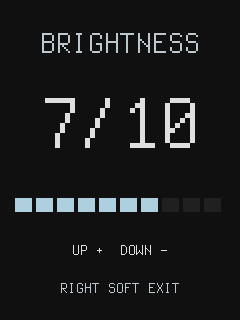
Brightness control shows the LCD brightness level as a number from 0 to 10 and a ten-segment bar, and lets you change it with the keypad. The number is a setting, not a percentage or a light measurement. Display and lights explains the system brightness scale and how to change it from the command line.
The graphical session includes brightness control in Settings. UMS9117 builds also supply fplinux-brightness-ui.apk as an optional direct-display application. The Xiaomi Qin 1s+ build does not supply this APK, and physical keypad use of this application is not verified on that phone.
Install and start
Section titled “Install and start”Install fplinux-brightness-ui.apk as described in Packages. Its installed package name is fplinux-brightness-ui. Stop the graphical session and run the application from the USB shell, following Direct-display applications:
fplinux-brightness-uiThe interface uses the phone’s native display size and adapts to portrait or landscape screens. Check phone support status for display and keypad limitations. The application needs the system brightness service, which runs by default.
Controls
Section titled “Controls”| Key | Action |
|---|---|
| Up | Raise the level by one |
| Down | Lower the level by one |
| Right soft | Exit |
The level stops at 0 and 10. Level 0 turns the backlight off. The application keeps running in the dark: press Up to return to level 1.
What happens to the level
Section titled “What happens to the level”Each successful change becomes the system brightness level at once and stays in effect after you exit. It lasts until the phone shuts down; the next boot starts with the default level.
If a change fails, the previous level stays in effect and the screen shows SET FAILED while the backlight is lit.